OFX Plugin for DaVinci Resolve by MrAlexTech
Animation, without the keyframes.
Drop it on a logo, a webcam, a title or a clip. Pick how it arrives, what it does while it sits there, and how it leaves. MagicAnimate handles the timing, the weight and the bounce, so it looks like it was animated by someone who does this for a living. No keyframes. No curves. No fiddling.
Free 7-day trial. Needs DaVinci Resolve 21 or later.
How it animates
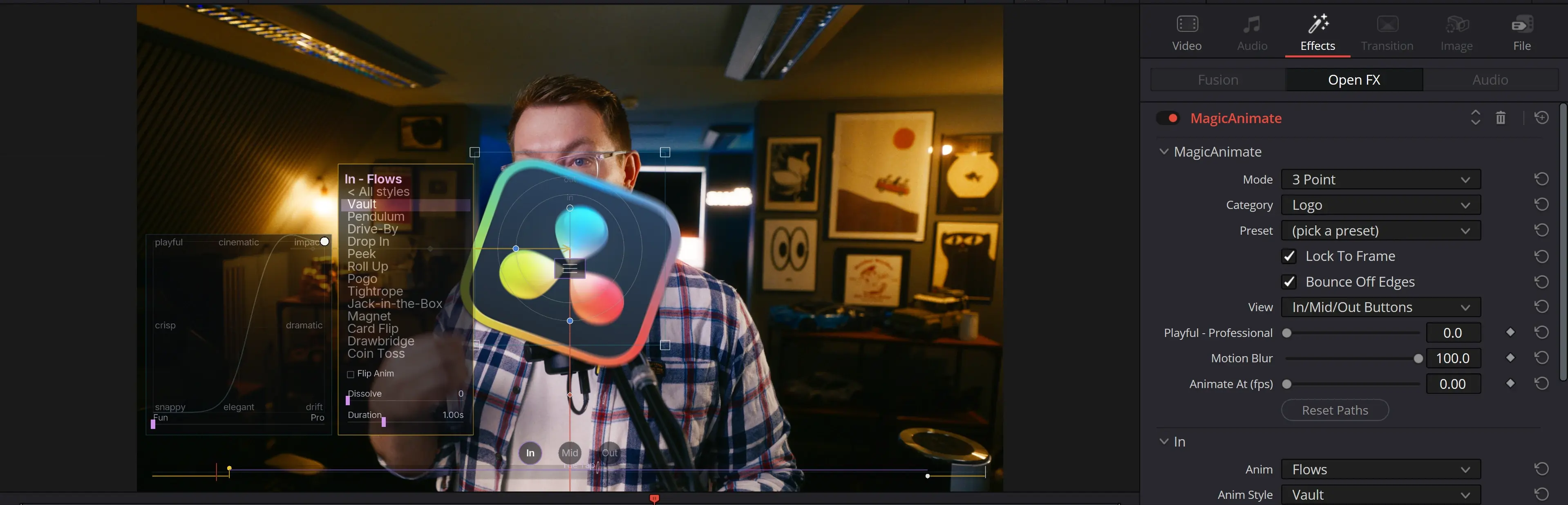
Choose an In and MagicAnimate picks a Mid, an Out and every move in between to match, so the whole thing feels like one animation. Change any of it when you want to.
Add the effect, pick a preset or an In. The layer is animated before you touch anything else.
How it arrives, what it does while it sits there, how it leaves. Over 80 Ins and Outs, 40+ Mids.
Choose the In and Auto picks a matching Mid, Out and point-to-point moves. Change any of them when you want to.
Wind-up, overshoot and settle on every move. Snap and Weight per In and Out, and one Playful to Professional dial for the whole feel.
Add up to six extra positions on the timeline and the layer travels between them, with its own Mid at each stop. Ctrl+zoom a corner to add one where you are.
Chips and panels right on the preview, a timeline strip with F1 zoom, and a 2D pad for character. The inspector is there if you want it.
The library
Every animation is built on the same motion engine, so a Whip, a Pogo and a Portal all feel like they came from the same animator. Go on, click one.

Flows. 26 signature moves with a story, hand-authored beat by beat: Vault, Pendulum, Drive-By, Jack-in-the-Box, Coin Toss, Faceplant and more. Every Flow In has a matching point-to-point move, and Flip Anim mirrors any of them.
13 arrivals and exits with a look: Portal, TV On, Glitch, VHS Load, Film Burn, Hologram, Pixelate, Dust, Ink Bleed, Scan, Ripple, Camera Flash and Comic. They follow the layer's real shape, and each has a matching Mid and move.
Eleven families: Fade, Slide, Whip, Drop and Rise, Push, Zoom, Spin, Flip and Reveal. Every one has its own duration, snap, weight, spin and arc, and any Out can Return Home instead.
Shapes and face detection
Put your webcam in a circle, a pill or a squircle, then turn on face detection. Lean in, shift about, wander off to one side: the shape follows your face and keeps you framed.

Five to choose from, with corner radius, edge softness and a crop. The shape can form as the layer lands and open back up as it leaves, and the drop shadow, border and ripped edge all follow it.
Tick one box and the shape tracks your face, so you stay in frame even when you move. Follow Speed sets how quickly it catches up, Offset nudges the framing, and Show Tracking shows you what it is following.
It all happens on your computer. It finds where a face is and nothing more. No image, frame or face ever leaves your machine, and it never identifies anyone.
What's in the box
Most people live in MagicAnimate. The other two are there when you want more control, and they share the same looks and presets.
The drop-on animator. In, Mid and Out from the full library, up to six extra positions, and Auto builds the rest from your In.
Logos, webcams, titles, photos, sidebars
The path animator. Place the layer, move down the timeline, place it again, and it moves between the points. Each point has its own Mid, speed and character.
Saying exactly where the layer goes
Full keyframe control with an on-screen timeline and curve editor. Position, Zoom, Rotation and Crop each on their own track.
Every frame in your hands

Looks and finishing touches
Shadows, borders, torn edges and motion blur. Shared by all three effects, and saved in your presets.
Opacity, distance, angle, softness and colour. Lifts the layer off the background.
A coloured border outside, centred or inside the edge. It follows the shape, rounded corners included.
Tears the edge like paper, following the shape. From big slow tears to fine and fibrous.
Uses the visible part of the source, so a logo with transparency animates as the logo, not the whole frame.
Real motion blur on the movement, so a fast Whip reads as fast rather than as a jump.
Set a frame rate for the motion, like 12 fps, and add Handmade Jitter for that hand-made feel.
Keeps the picture inside the frame, so you can cram it right into a corner without any of it falling off the edge.
Leftover momentum bounces off the edges of the frame instead of sailing out of it, so a lively In stays on screen.
Presets
A preset is a starting point, not a mode. Picking one sets the controls and gets out of the way, so every preset can be tweaked by hand.


Your own presets, too. Save any setup with a name and a folder. They are plain text files, so you can back them up, share them with a team, or drop someone else’s in. Save As Default makes it what every fresh instance starts with.
How it works
Step 1
Add MagicAnimate to a clip. Choose a category and a preset, or pick a shape and place the layer where it should sit.
Step 2
Whip, Pogo, Portal, Coin Toss, whichever fits. Auto sets a matching Mid and Out. Change either, or turn the Playful to Professional dial.
Step 3
Ctrl+zoom a corner to add a position on the timeline. The layer travels there with a move that matches the In, and each stop has its own Mid.
Pricing
Free forever
$49.99 one-time · 7-day free trial
Secure checkout via Stripe. Tax is added at checkout where it applies.
FAQ